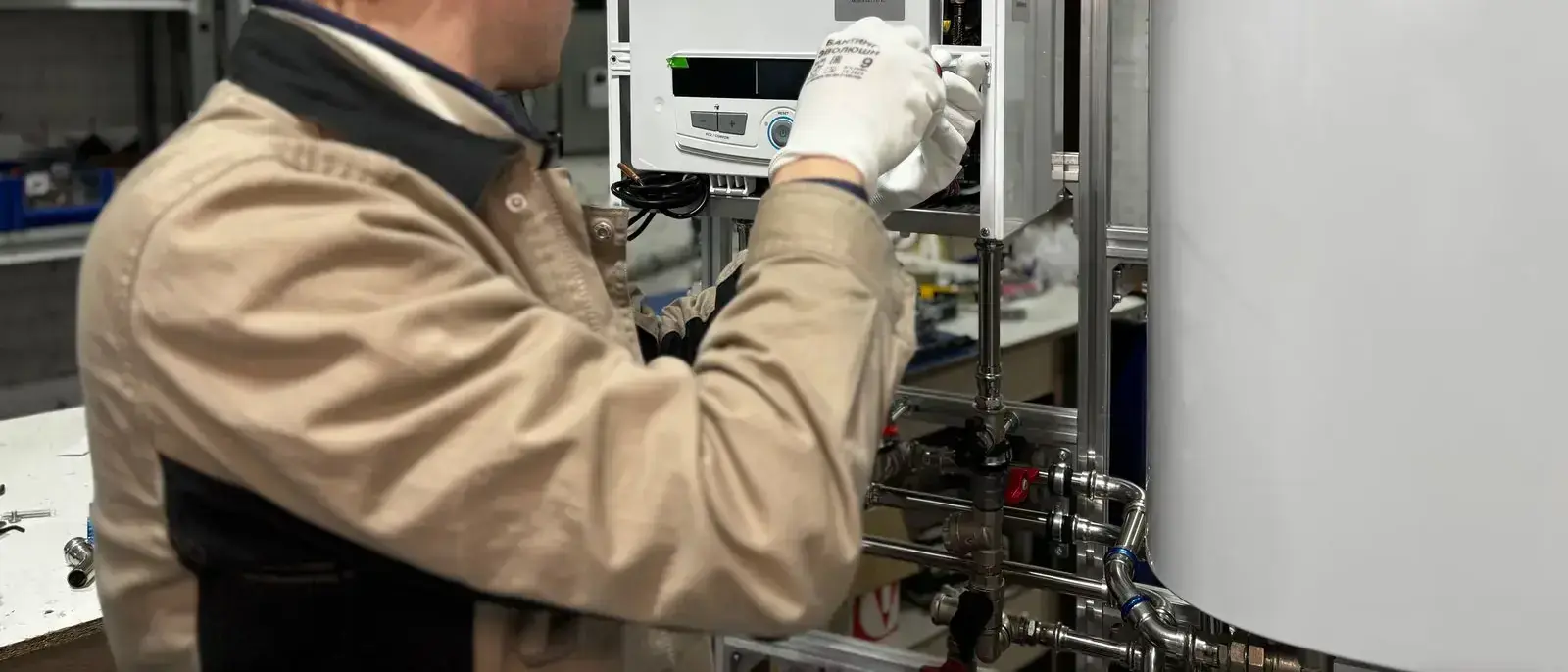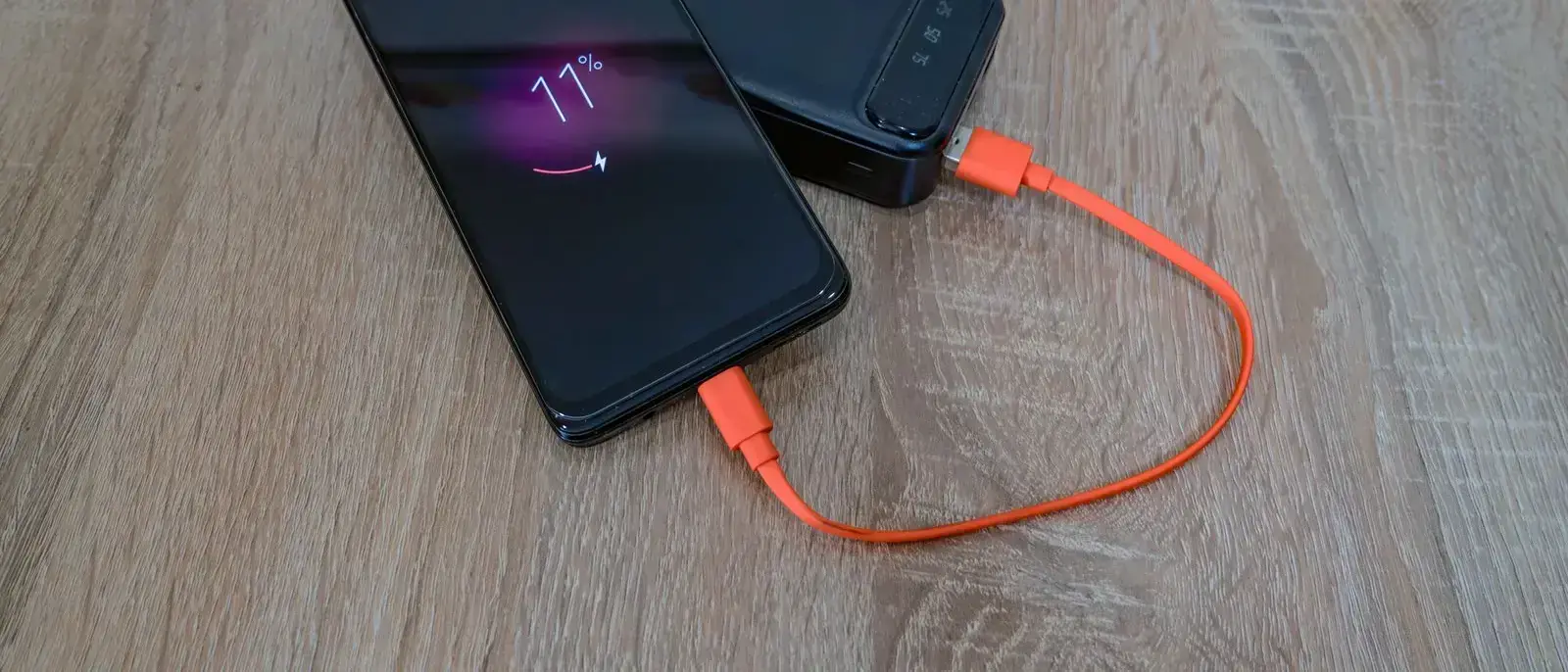
A work tablet that dies at three in the afternoon is not much use to anyone, and the fix is rarely a bigger battery. Most of the drain on a tablet on site comes from three things: the screen, the radios and apps working away in the background. Get those under control, charge in the van between jobs, and carry a spare battery where the device lets you, and most days the question of whether it will last the shift goes away. This guide works through the settings in general terms, then the charging kit, then which Tuga devices have a battery you can swap.
Where the Power Actually Goes
Every tablet has a battery screen in its settings that shows what has used the power since the last charge. Look at it at the end of a normal day before you change anything. The screen is usually at the top, then the app you had open longest, then the radios, and often apps you never opened that were syncing or checking for updates in the van.
That list tells you where to spend your effort. If the screen is using most of the power, brightness is the lever. If a cloud storage or messaging app is high on the list without you having touched it, background sync is the lever. If the tablet spends the day out of coverage, the radios are the lever, because a device searching for a signal works harder than one that has found one.
The Screen
The screen uses more power than anything else in the tablet, and brightness is the biggest single setting you control. Auto brightness is a reasonable default: the tablet turns itself up in sun and down indoors, which is usually what you want. If it tends to sit too bright, most devices let you nudge the auto level down and remember the preference.
A bright outdoor screen is also an efficient one in a roundabout way. The Tuga A8 lists a 1000 nit display, so it can be read in direct sun at a lower proportion of its maximum than a dimmer screen could. The Tuga A10 lists 350 nits, which is enough in shade or a cab but means you will be at full brightness more often on a bright roof. Our guide to what nits mean for outdoor work explains the trade off.
Two more screen settings matter. Set the screen timeout short, 30 seconds or a minute, so a tablet left face up on the van seat goes dark on its own. And on devices with a dark mode, use it. On an LCD screen, which every Tuga device has, dark mode saves little or nothing in power, so do it for your eyes in a dim loft rather than for the battery. The honest gain is in brightness and timeout.
The Radios
Mobile data, Wi-Fi, Bluetooth, GPS and NFC each draw power, and the ones that are switched on but not useful are pure waste.
- Mobile data. A tablet with a SIM that spends the day in a basement or a steel framed building, hunting for a signal it cannot find, drains faster than one with a signal. If you know the morning is underground, aeroplane mode for that stretch and a sync when you come back up is a fair trade.
- Wi-Fi. Leave it on where there is a network you use, off where there is not.
- Bluetooth. Only on when something is paired: a printer, a headset, a Bluetooth scanner or a meter.
- Location. Apps that tag photos and jobs with a location need it. Apps that ask for it and do not need it can be told no in the app permissions, and most devices let you give an app location only while you are using it.
- NFC. Every Tuga device lists NFC. It is a short range, low power radio and the drain is small, but if you never tap a tag, turn it off and forget about it.
Background Sync and Updates
The drain you cannot see is apps working while the tablet is in your bag. Photo backup is the usual culprit: a dozen site photos uploading over 4G in a weak signal area uses more power than taking them did. Cloud storage, email, messaging and the job management app all poll for new data on their own schedules.
You do not want to turn this off, because the copy in the cloud is what protects you if the tablet is lost. What you can do is choose when it happens:
- Set photo and file backup to upload over Wi-Fi only, or when charging, if the app offers it. The photos then go up when the tablet is in the van dock or at home that evening.
- Set app and system updates to download over Wi-Fi only and, where the option exists, overnight.
- Go through the app list and turn off background activity for apps you only use when you open them. On Android this is per app under battery settings; on Windows it is under the privacy and background apps settings.
Battery Saver Modes
Android and Windows both have a battery saver mode. In general terms they dim the screen, limit background activity, slow some syncing and turn off a few visual effects. They are built to stretch the last part of the charge, not to run all day.
A sensible setup is to let it come on automatically at a threshold, 20 percent on many devices, and to turn it on by hand when you know the afternoon will be long and the charger is a long way away. Treat it as a reserve, not a lifestyle.
Charging Between Jobs
For most trades the van is where the battery comes back. The gaps between jobs add up to a lot of charging time if the tablet is plugged in for each of them rather than sat in the door pocket.
The 12V DC Car Charger at £26 fits every device in our range. It has a USB-C output and a 2 metre cable, so the tablet can sit on the passenger seat while it charges. For the devices that list fast charging, the A10 with quick charge, the WH6 and W8 with USB-C PD and the W10 with 9V 3A charging, those drives count for more. Remember the winter rule from our guide to rugged tablets in the cold: a device that has sat in a frozen van overnight should warm up before it goes on charge.
If the tablet lives in the van as a navigation and dispatch screen, a powered mount is the tidier answer. The Vehicle Mounting Dock at £109 is a locking VESA mount with a DC power input that fits the A8, A10, W8 and W10. Our guide to mounting a tablet in a van covers where to put it and the legal note on not using a device while driving.
At the desk or in the depot, the Charging Dock at £49.99 fits the A10, W8 and W10 using the pogo pin contacts on the back, so the tablet drops in and charges with no cable to find in the dark. The WH6 Charging Cradle at £79 does the same for the WH6 handheld. The A6 has charging contacts for a dock, though a dock for it is not listed on our accessories page, so it charges by USB-C. All of this kit is on the accessories page.
Carry a Spare Where You Can
The one measure that changes the problem entirely is a removable battery. If the battery comes out, a charged spare in the glovebox turns a tablet that might not make it into one that will, and a worn battery two years from now is a part to replace rather than a reason to buy a new device. Our guide to removable batteries goes into why they matter; here is where the range stands.
- Tuga A6: 5050mAh, removable. A spare fits a pocket alongside the 277g handheld.
- Tuga A8: 8000mAh, removable. The largest battery in the range, and you can carry a second one.
- Tuga A10: 8000mAh with quick charge. The battery is not listed as removable, so the A10 relies on charging rather than swapping.
- Tuga WH6: 4000mAh, removable. The smallest battery in the range, powering full Windows 11, so a spare matters more here than anywhere.
- Tuga W8: 5000mAh, removable.
- Tuga W10: 5000mAh, removable.
Keep the spare charged by swapping it in every so often, store it somewhere dry rather than on a summer dashboard, and swap with clean hands, because grit on the battery cover seal is how a sealed device stops being sealed.
A spare battery is not something we list as a separate accessory. Ask us through the contact page and we will tell you what we can supply for your model.
Windows Needs a Little More Thought
The WH6, W8 and W10 run Windows 11, which was written with a laptop on a desk in mind and will download a large update over 4G mid morning unless told otherwise. Set the mobile connection as metered, set active hours so updates do not restart the tablet during a job, and use the power mode slider to favour battery life when you are away from the charger. When the W10 is plugged into a panel by Ethernet or HDMI, there is usually mains nearby, so charge while you are connected.
A Shift-Proof Routine
- Start the day full. Charge overnight indoors, at room temperature.
- Set brightness to auto and the screen timeout to a minute or less.
- Turn off the radios you are not using, and set photo backup and updates to Wi-Fi only or when charging.
- Plug in on every drive. The 12V car charger or a powered mount turns dead time into charging time.
- Carry a charged spare on the A6, A8, WH6, W8 or W10, and swap it with clean hands.
- Save battery saver for the afternoon you did not plan for.
When the Battery Is the Problem
If a tablet that used to last the day now does not, with the same apps and settings, the battery may simply be worn. All lithium batteries lose capacity with use, and normal capacity loss is not a defect under our warranty, though battery defects are. On a device with a removable battery the answer is a new battery; on the A10 it is a repair, so ask us. Our guide to how long a rugged tablet should last covers when a new device makes more sense.
Every Tuga device comes with a 12 month warranty, and delivery is free to UK addresses in 7 to 10 working days. Prices are as listed, with no VAT to add.
Compare head to head: A6 vs A8 · A8 vs A10 · A10 vs WH6
Rugged tablets from £349
IP65 to IP68 sealed, with 1000 nit screens and removable batteries where they matter. Free UK delivery, 30-day returns and a 12-month warranty on every device.
Browse the range